
Online ordering checklist
Menu preparation steps.
Organise categories, items, options and add-ons in one place, and update availability as your kitchen changes through the day.
Capabilities and availability can vary by region and setup. We confirm exactly what applies to you during a demo.
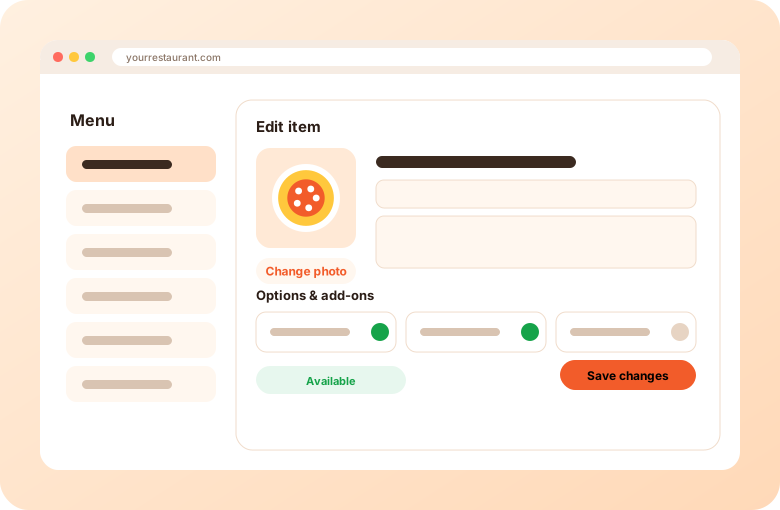
A clear, current menu means fewer mistakes and happier guests. This page covers what you can manage and how to keep it tidy.
Build your menu with categories and items, then add options (such as sizes) and add-ons (such as extras).
When something runs out, mark it unavailable so guests cannot order it. Turn it back on when it returns.
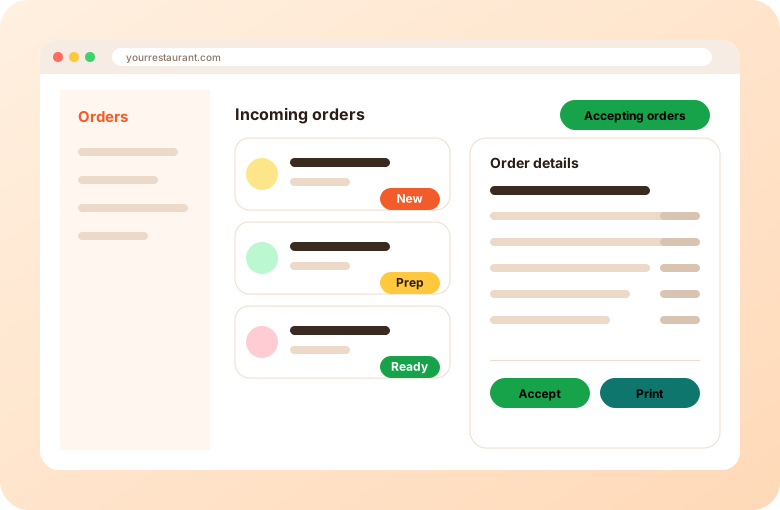
Photos and short descriptions help guests choose. Keep names consistent with your in-store menu.
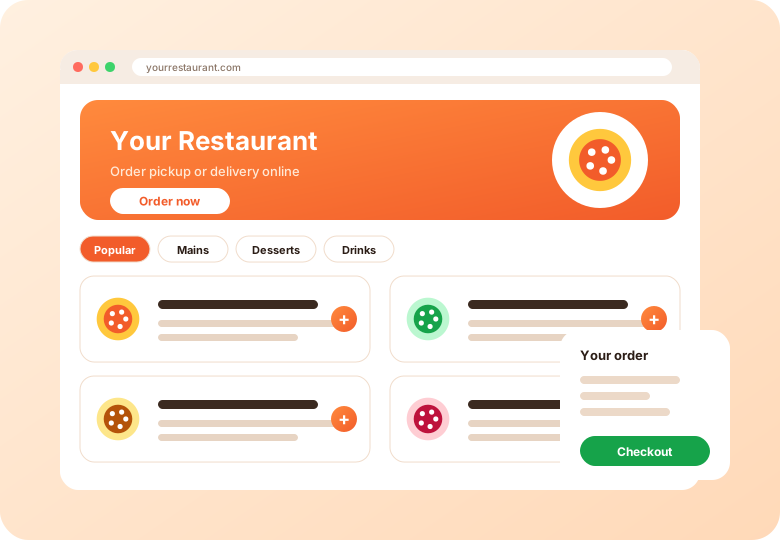
Menu updates such as items, descriptions and availability are managed in your account. Ask for a demo to see the editor.
Ask us about multi-location setups on a demo, since the details depend on your structure.
Gather items, options, prices and photos, and ask us how they can be moved. See the checklist.
Menu preparation steps.
How tickets look.
Menus for several brands.
Short videos from the AIOrders YouTube channel, loaded from YouTube only when you press play.
A short look at the AIOrders Video Menu, where every dish plays as video inside the online menu, shown on a live restaurant menu in Surrey, BC. No app or download is needed.
AIOrders YouTube channel, 2026-08-07, 0:29. Watch on YouTube
How the AIOrders Video Menu works: bestsellers play as short videos inside the menu beside the name, price and order button, using a live restaurant menu as the example.
AIOrders YouTube channel, 2026-07-14, 1:15. Watch on YouTube
Tell us about your restaurants and we will walk you through the platform.
Get a demo